Geographic Information Systems for Public Policy - Lecture IV
Vector Attributes and Tables
Sergio Rey
Last Time
- GIS Data Models
- Vector Data Model
Today
- Vector Attributes
- Table Joins
- Virtual Layers
Recap: Vector Data Model
- Each discrete object is considered to be a feature
- Vector features have attributes, which consist of text or numerical information that describe the features
- A vector feature has its shape represented using geometry
- The geometry is made up of one or more interconnected vertices
Features and Attributes
- Each
Featurehas a correspondingRecordorRowin theAttribute Table - The ordering of these rows has no intrinsic meaning
- Each
Featurehas a uniqueIDthis is relied upon to link the row to the feature
Example Data
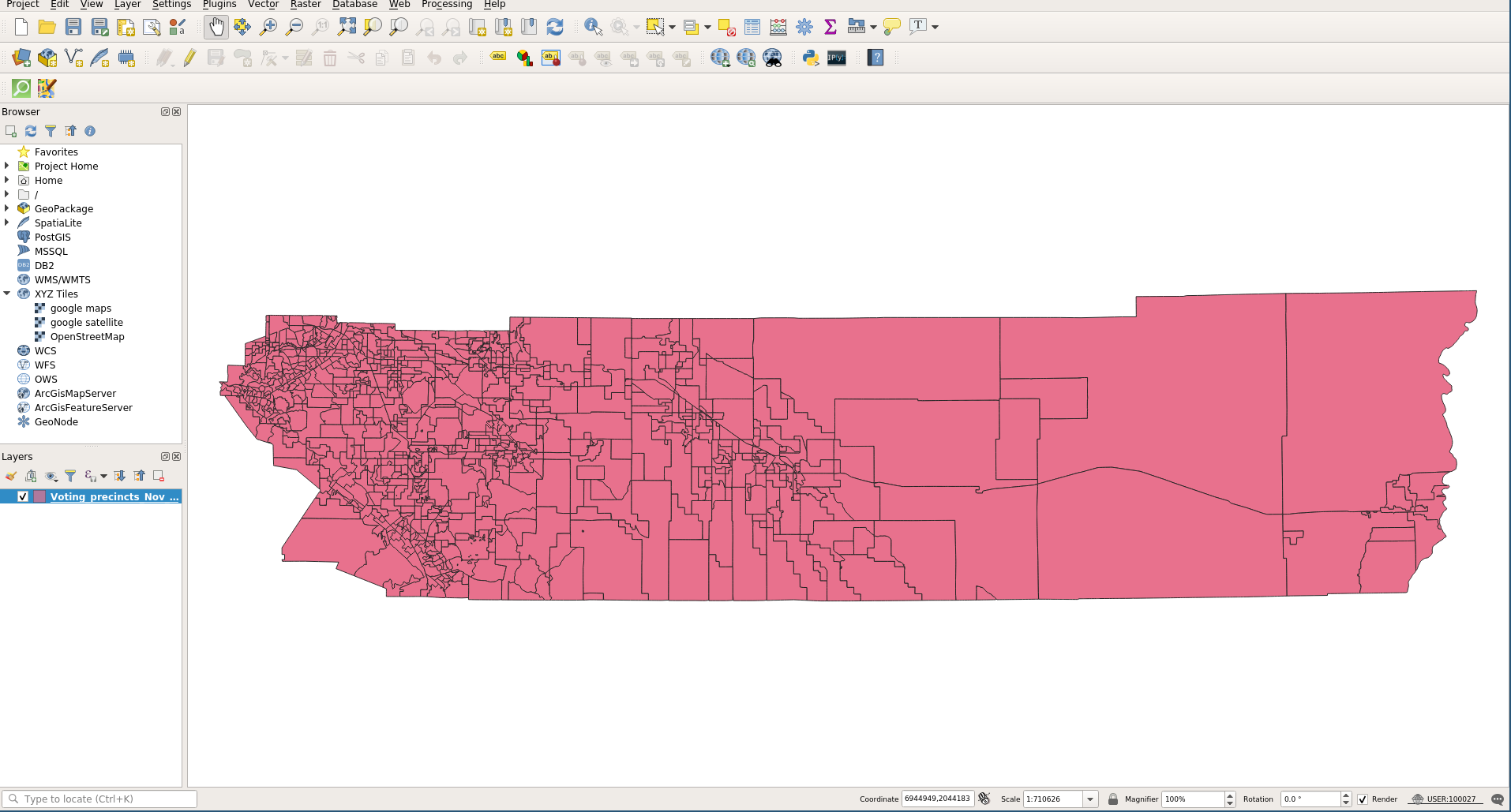
Voting Precincts: Riverside County 2016
Attribute Table
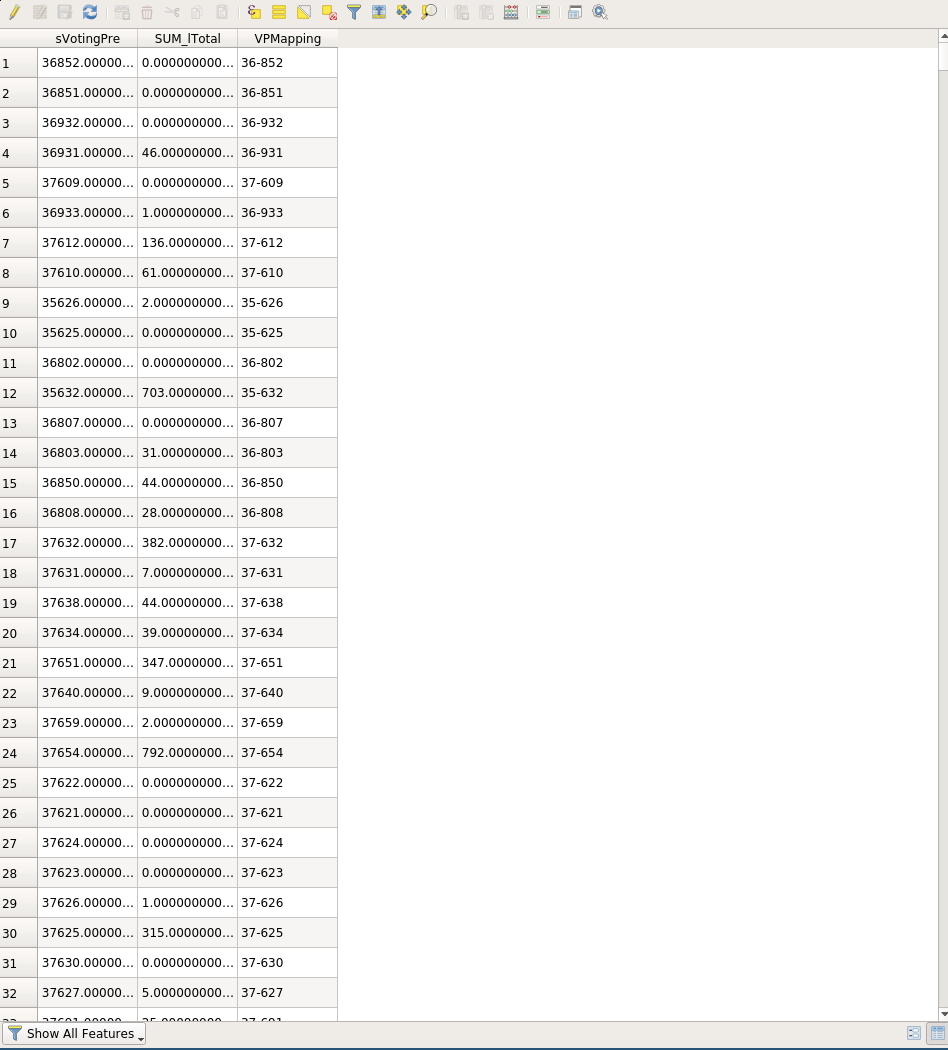
Table Joins
Loading csv layer
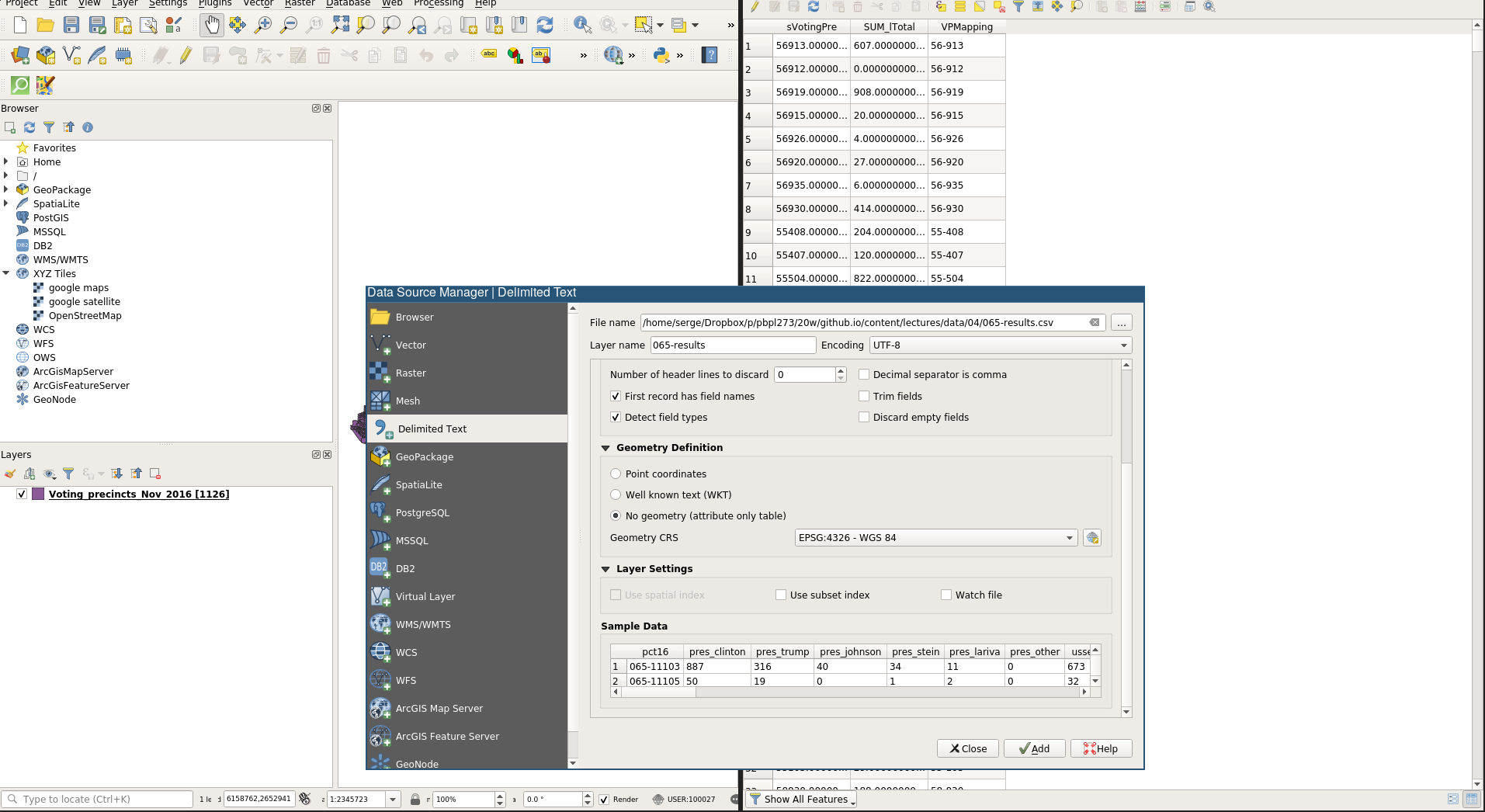
Sort two tables by their precinct attribute
Table Join
- We want to attach the data from the csv table into the shapefile layer
- While the two precinct attributes are aligned, they have different values pointing to the same precinct
- We need to fix this prior to doing a table join
Creating New Attributes
- We will first create a new attribute in the csv layer that has values matching those in the relevant field in the shapefile layer.
- To do so we will make use of the
Field Calculatorof attribute tables - We are going to proceed in several steps
- Ultimately we want to create a new field that changes
065-11103into11-103
Create an Interim Field
Create the Final New Field
New Field in Attribute Table
Table Join
- Now were in a position to do a table join
- In the shapefile layer, open its properties dialog and select
Joins
Table Join
- Ensure your dialog has the values as in the previous image
- Then click
apply - Open up the attribute table for the layer
Save our layer as a new name
It is good practice to save layers that have changed to a new layer.
This ensures the values for the fields are updated.
Save your layer as voting joined
Munged Field Names
One issue is our field names got changed when we saved to a new layers
Fixing Field Names
We can fix this:
- open the layer properties dialog and select
Source Fields
Turn on field editing by clicking the pencil icon
- Edit the name for the relevant field
Turn editing off by clicking the pencil
Creating More Attributes
- We will limit our attention to the 2016 presidential results
- Let’s create a few new attributes that help us study these results
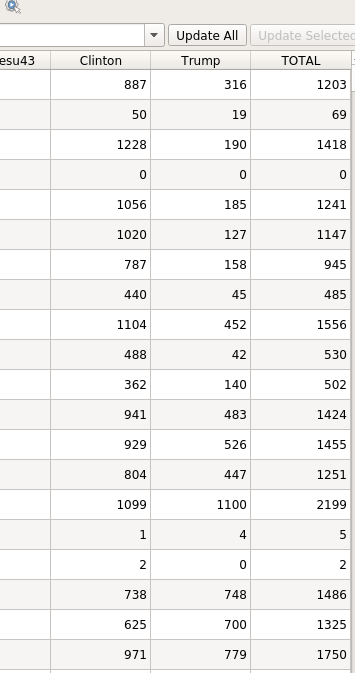
Create a new variable that is the total of Clinton + Trump
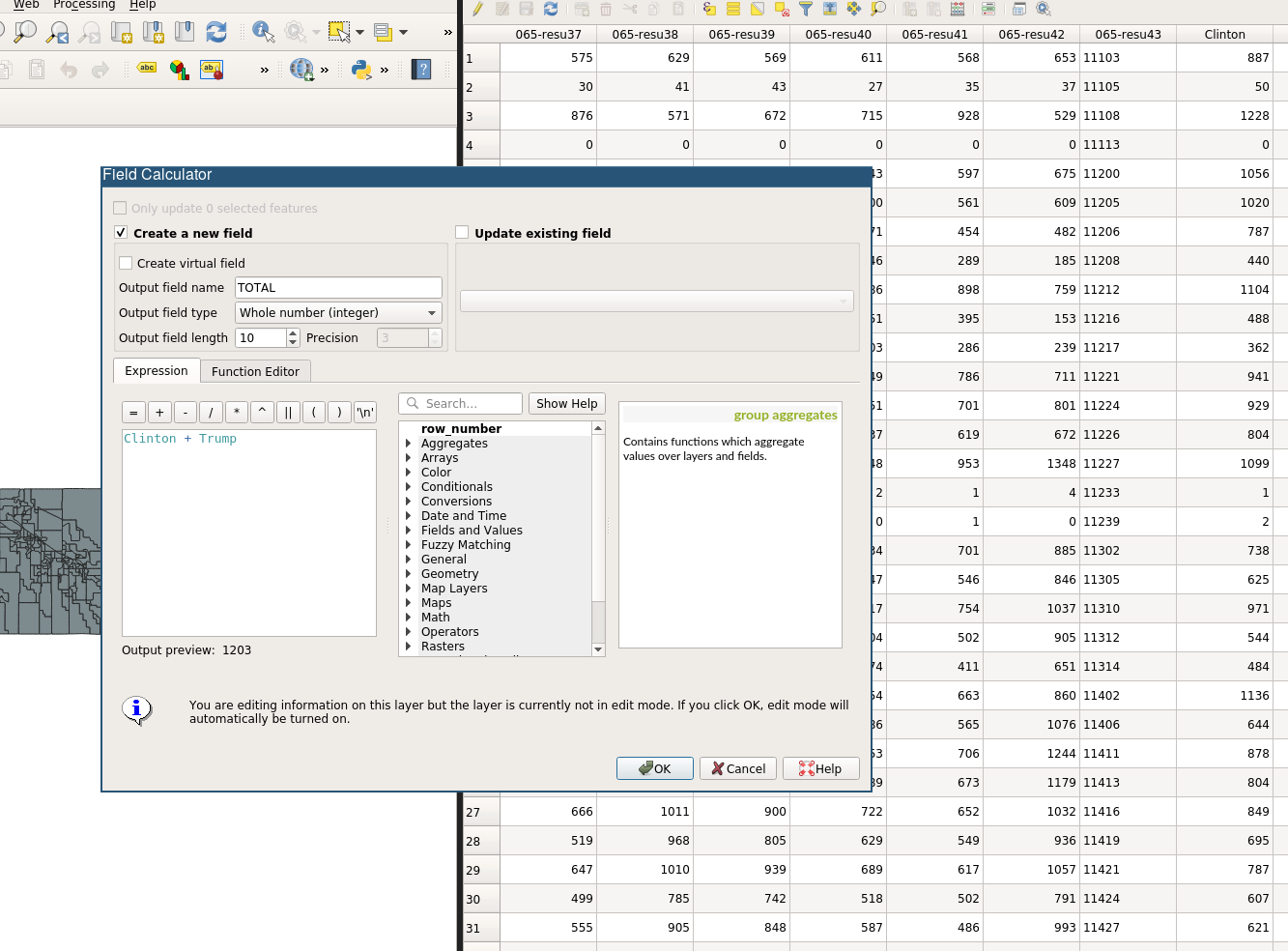
New Total
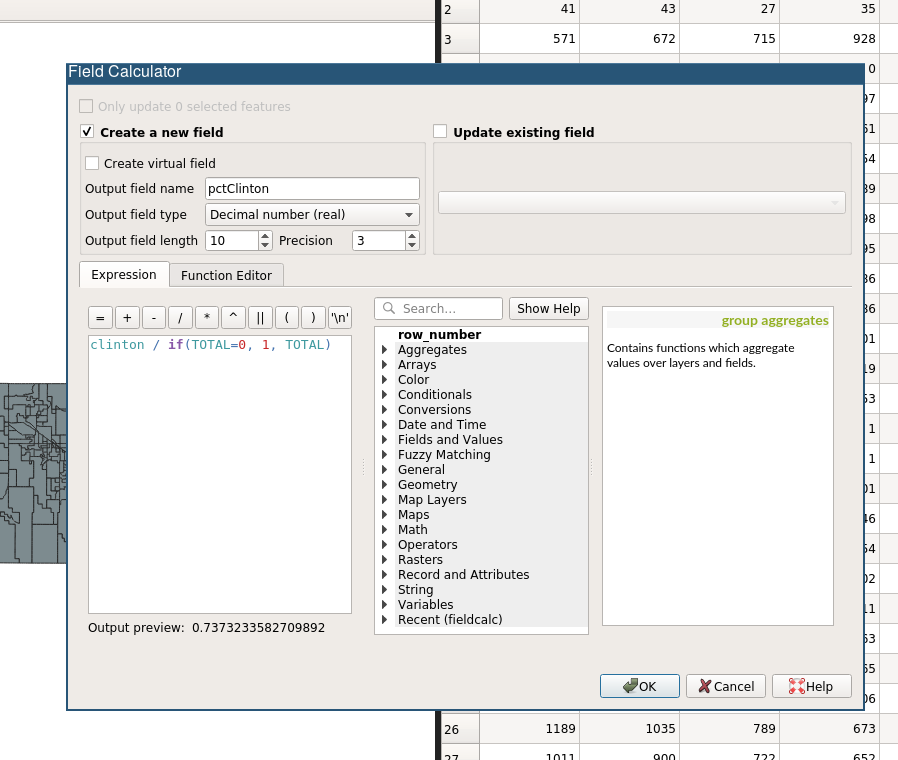
Create a pctClinton Attribute
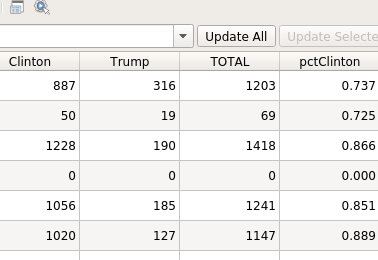
New pctClinton Attribute
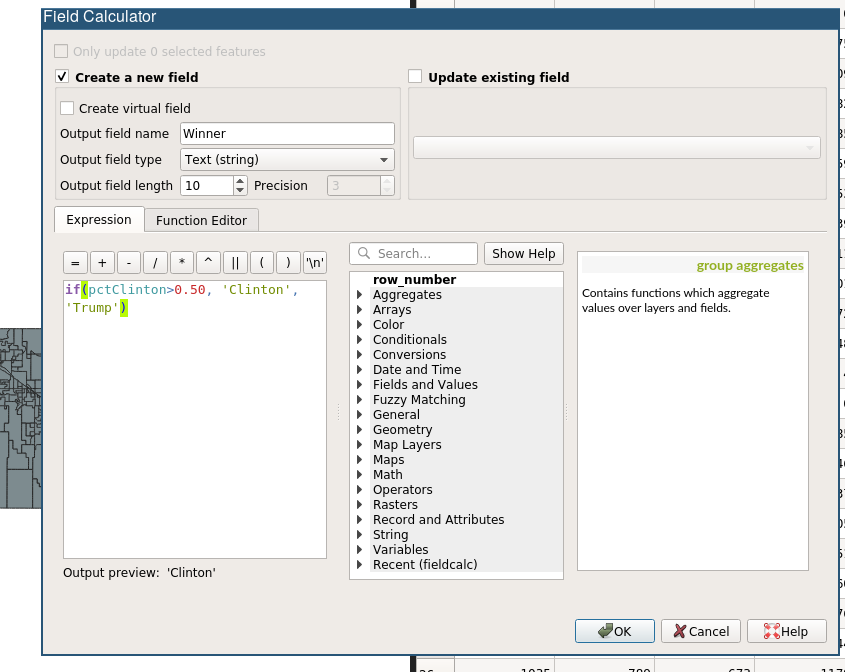
Create a Winner Attribute (String)
New Winner Attribute (String)
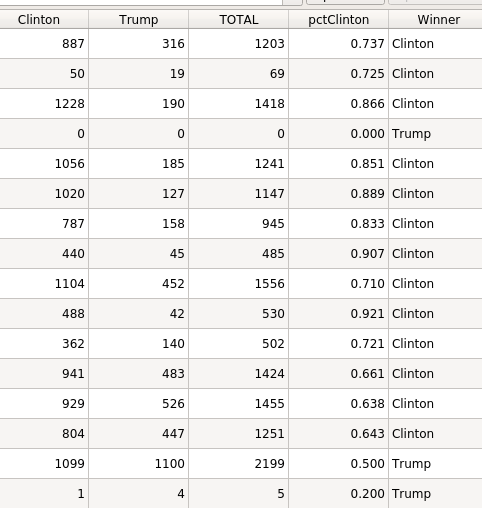
Symbology
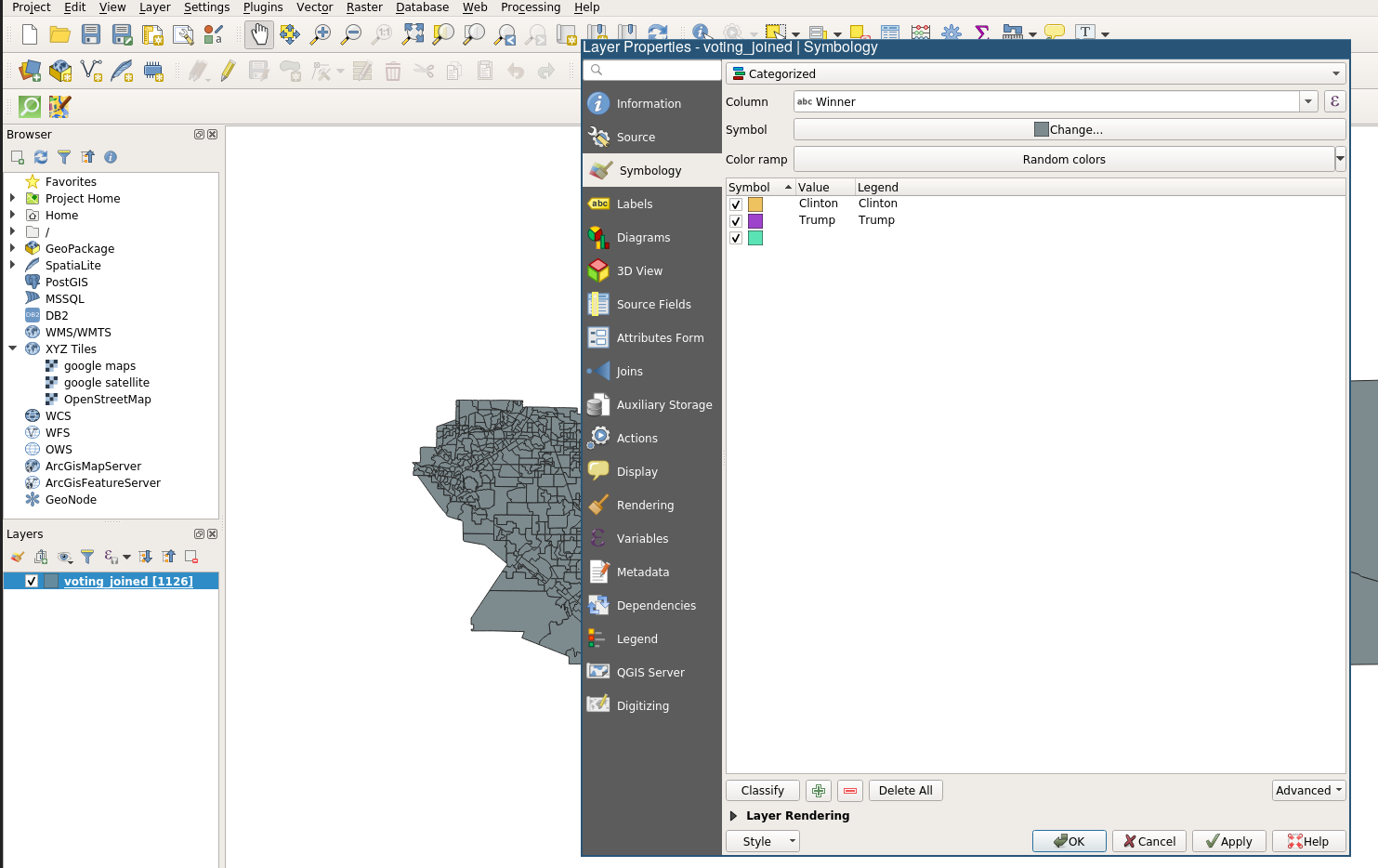
Sybmology Default
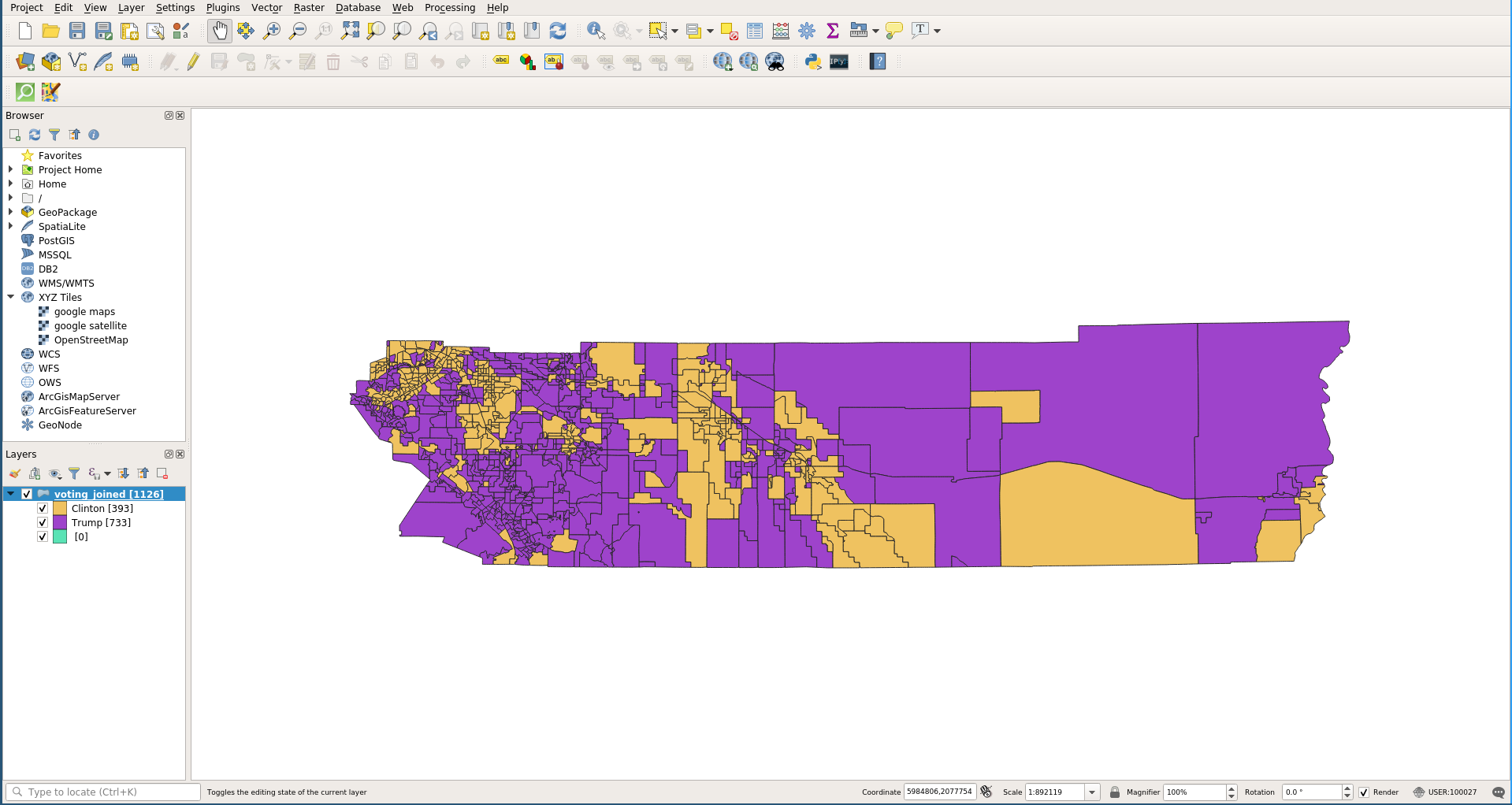
Sybmology Changing Fill Colors
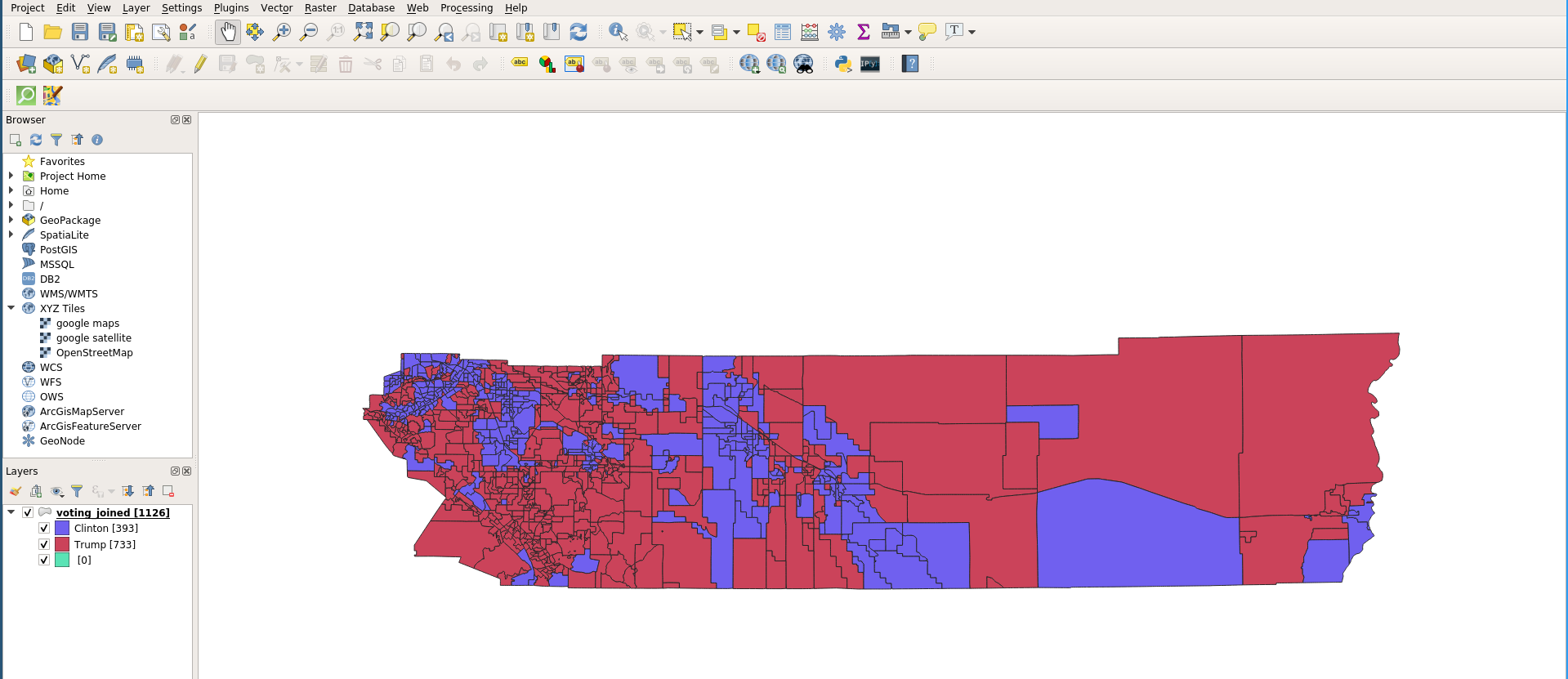
Virtual Layers
Virtual Layer Menu
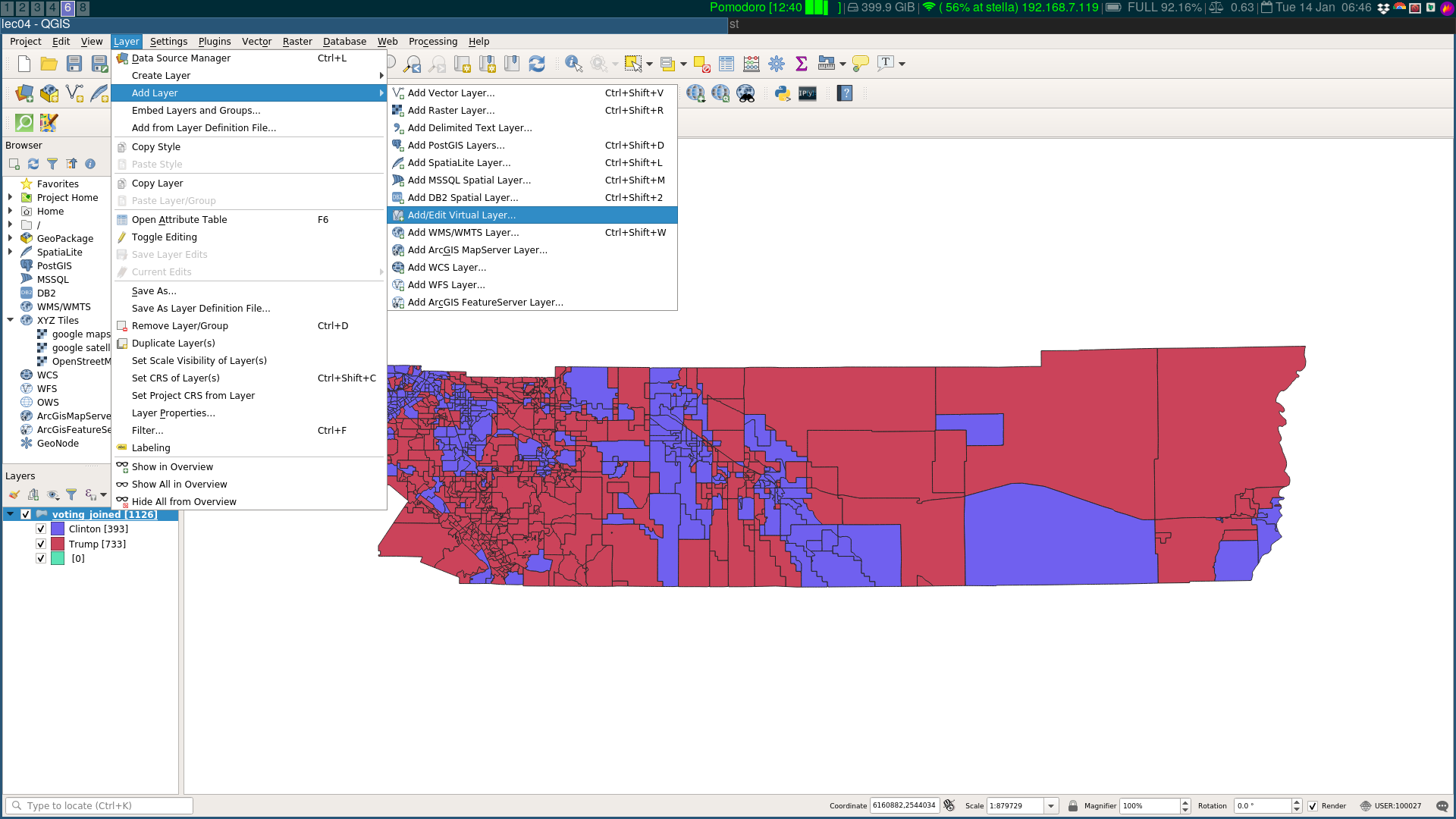
Getting the path
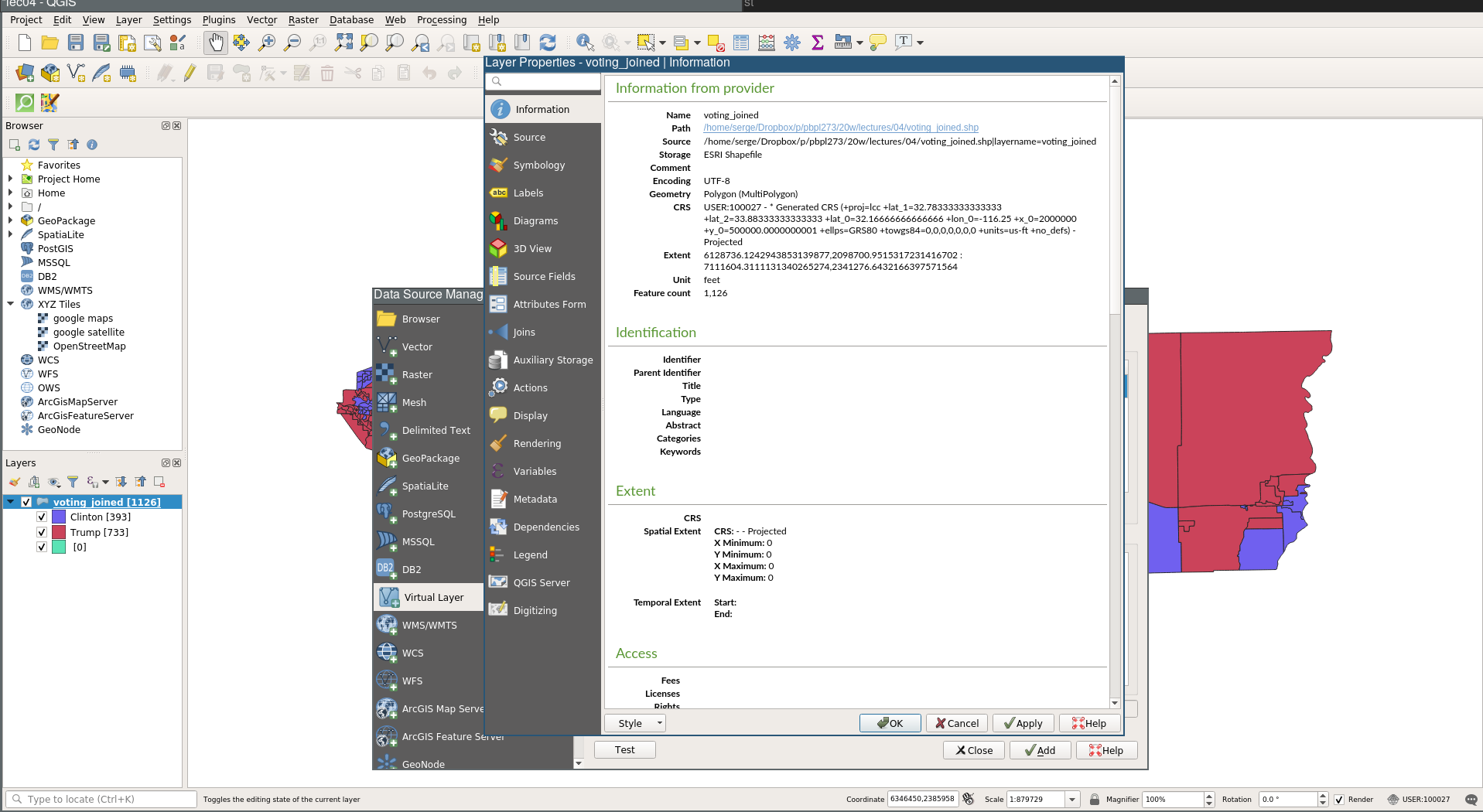
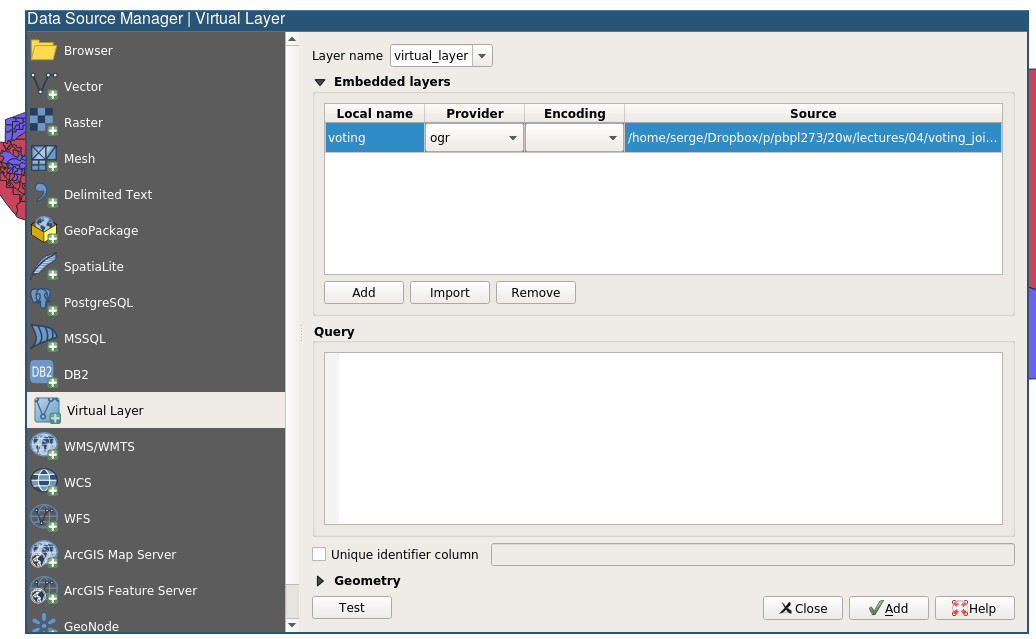
Path set
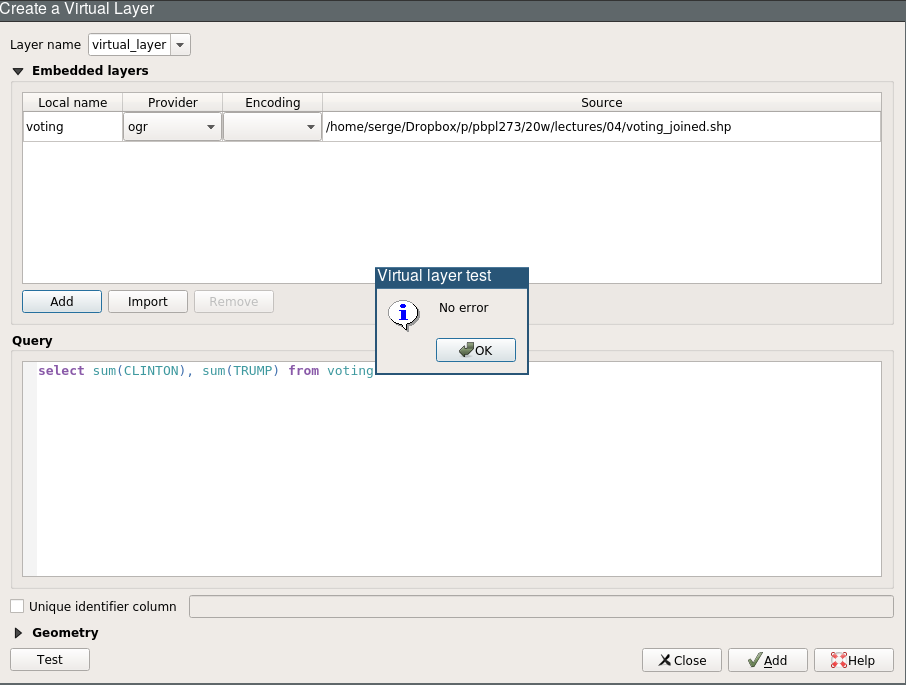
Query
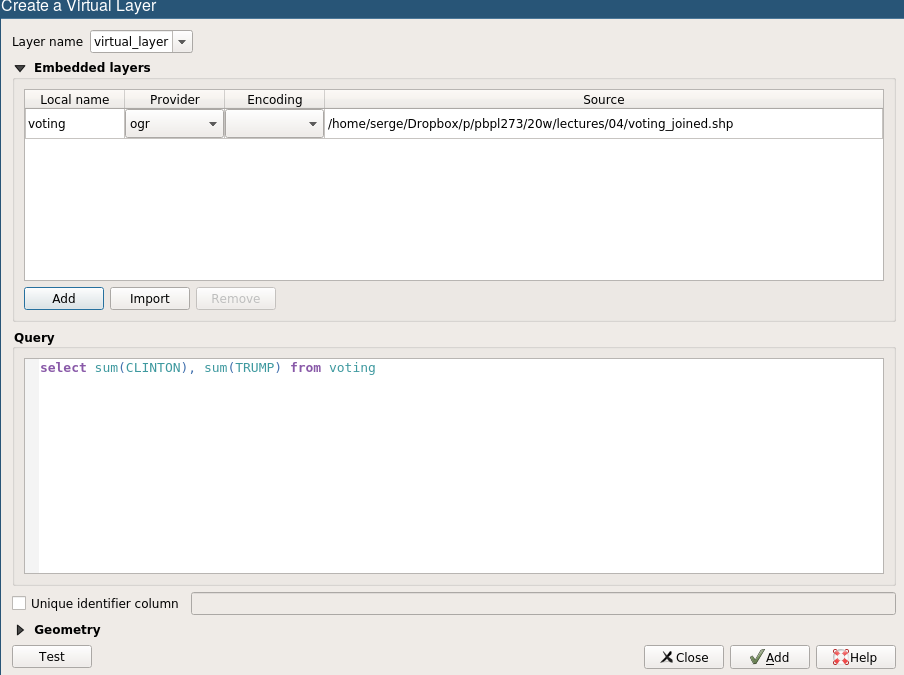
Test Query
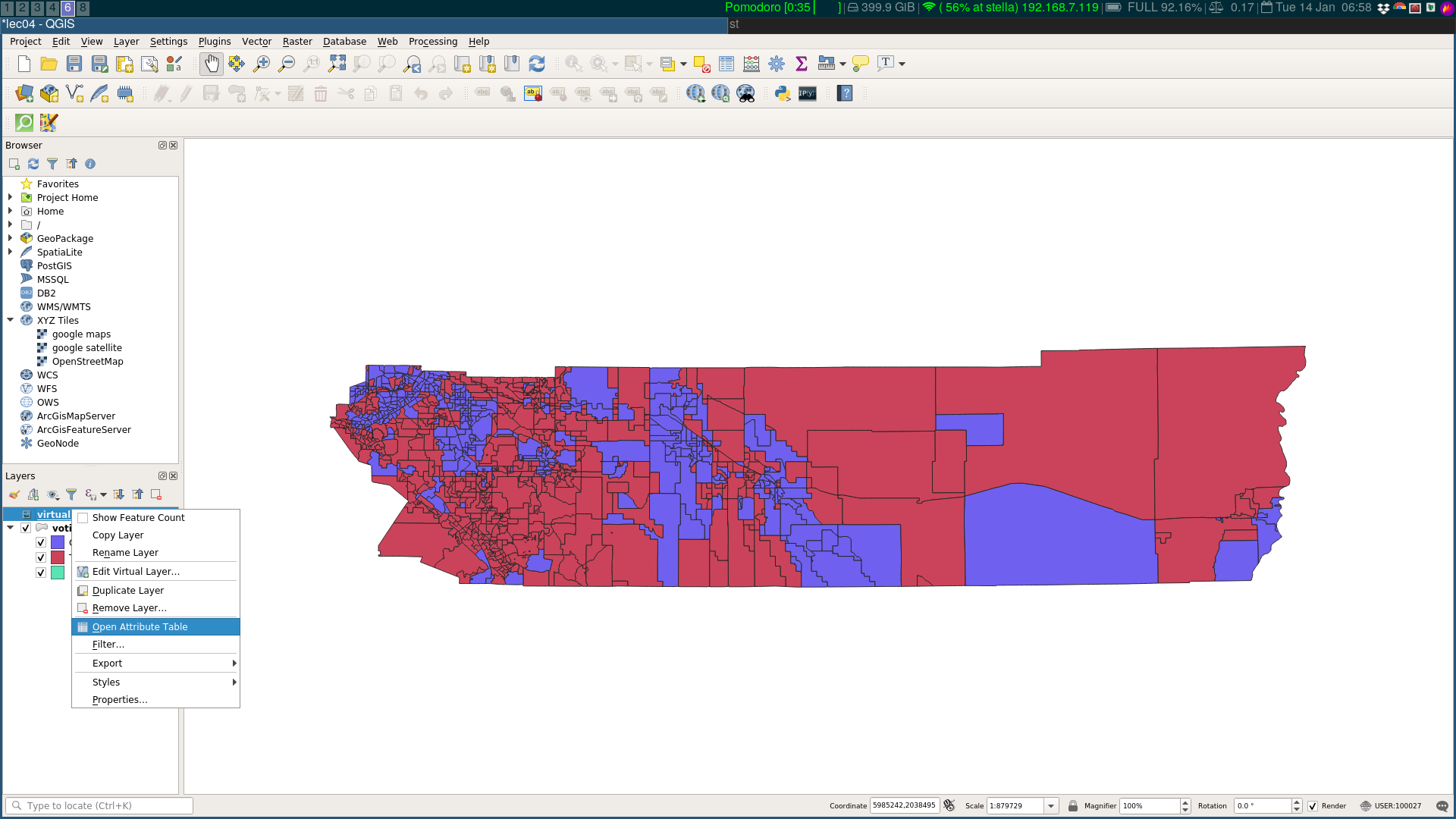
Accessing Virtual Layer Attribute Tables
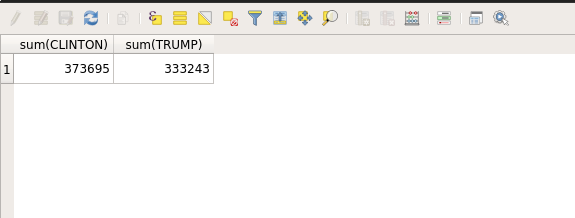
Query Result
Rename Virtual Layer
- right click on the virtual layer
- click rename
- rename to
clinton_trump_total
Duplicate Layer
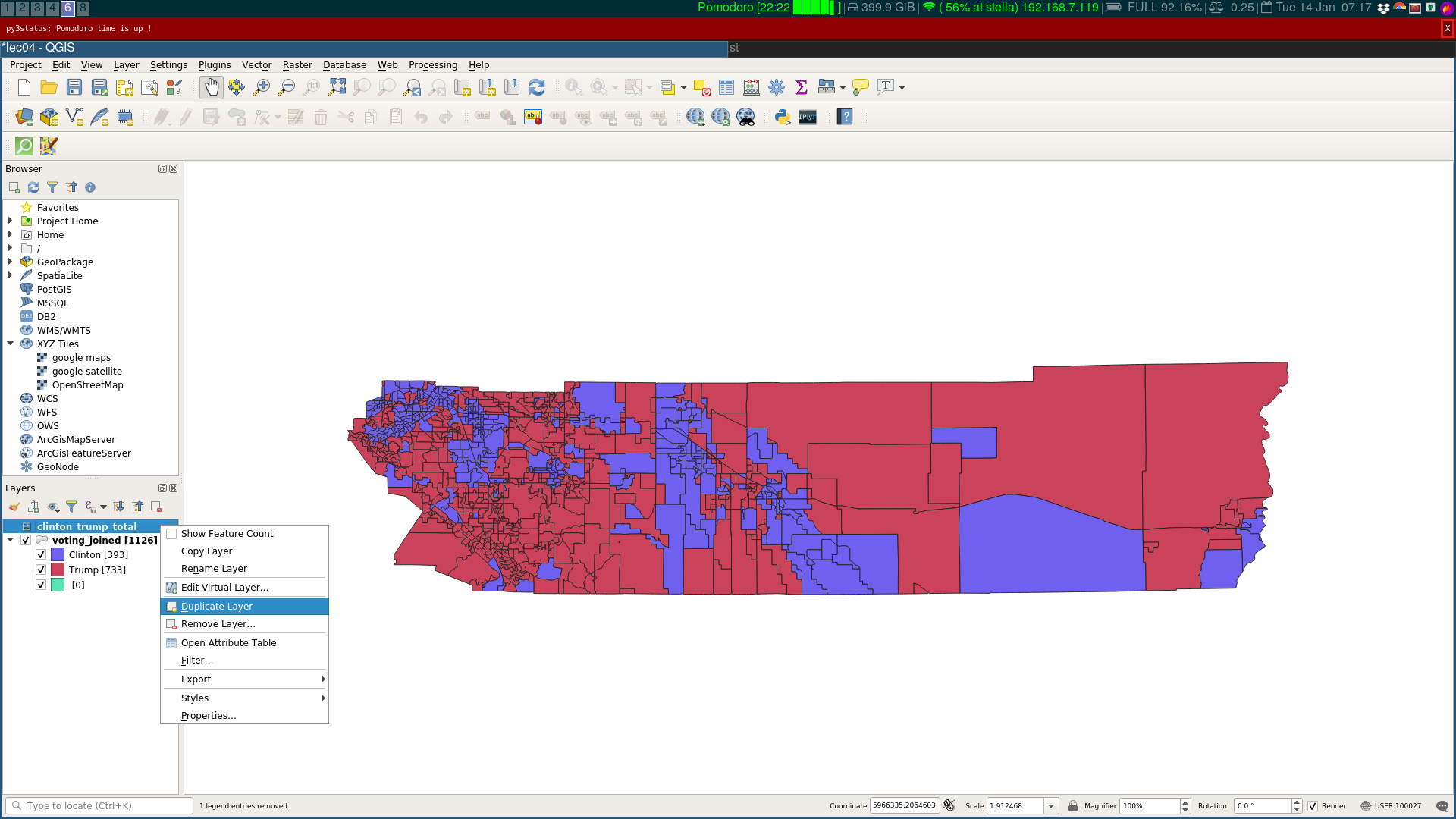
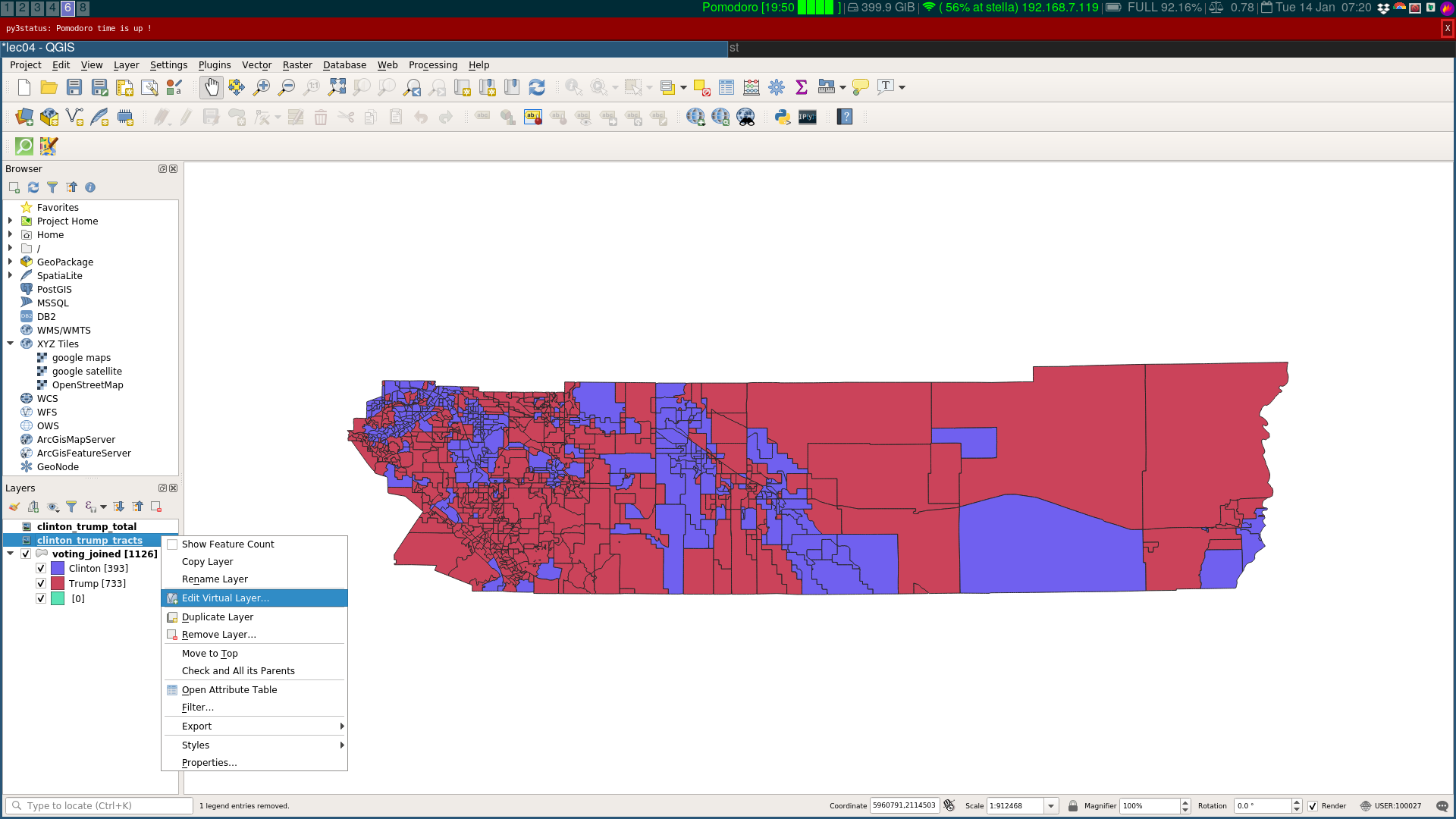
Rename Duplicate Layer
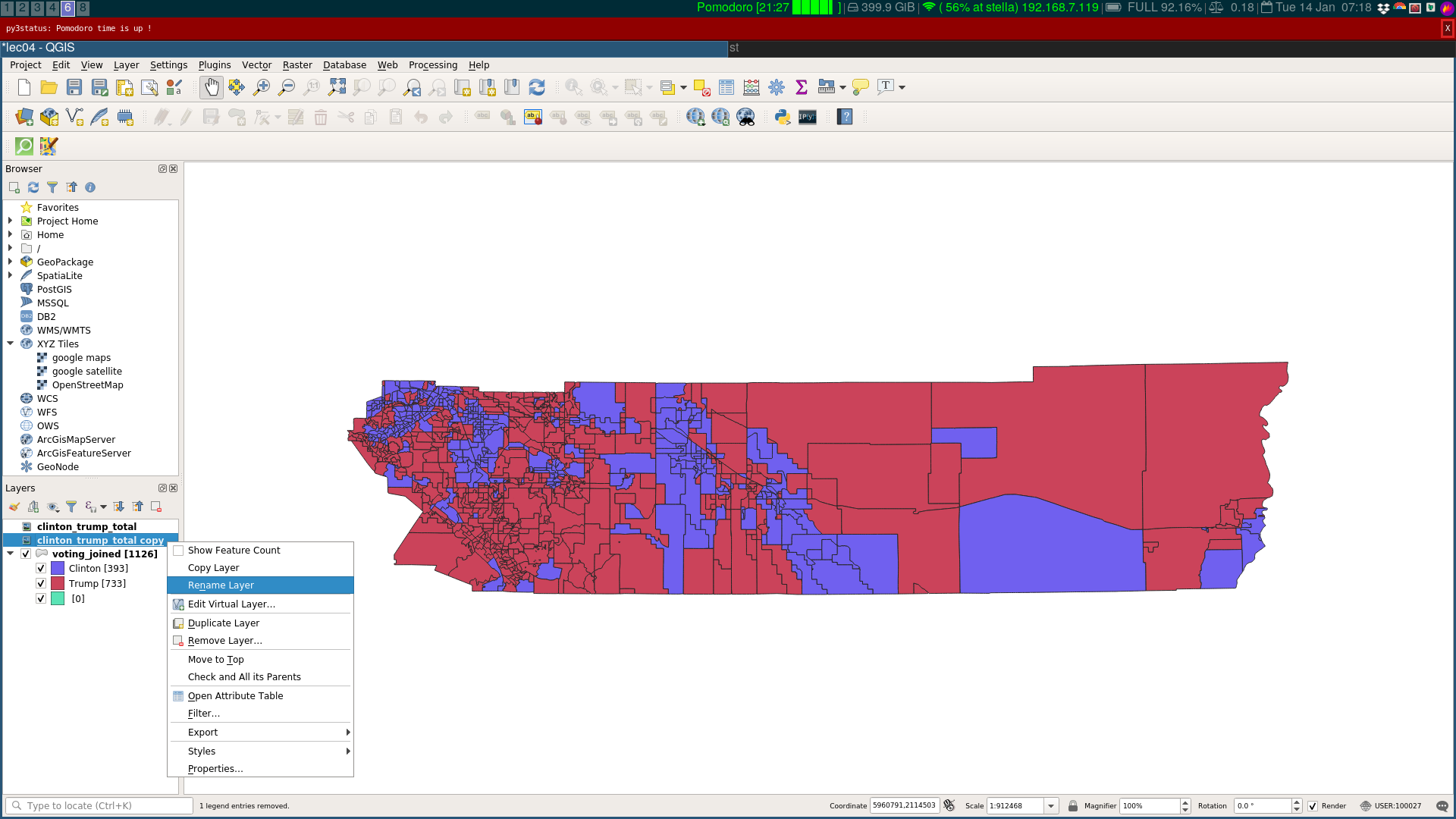
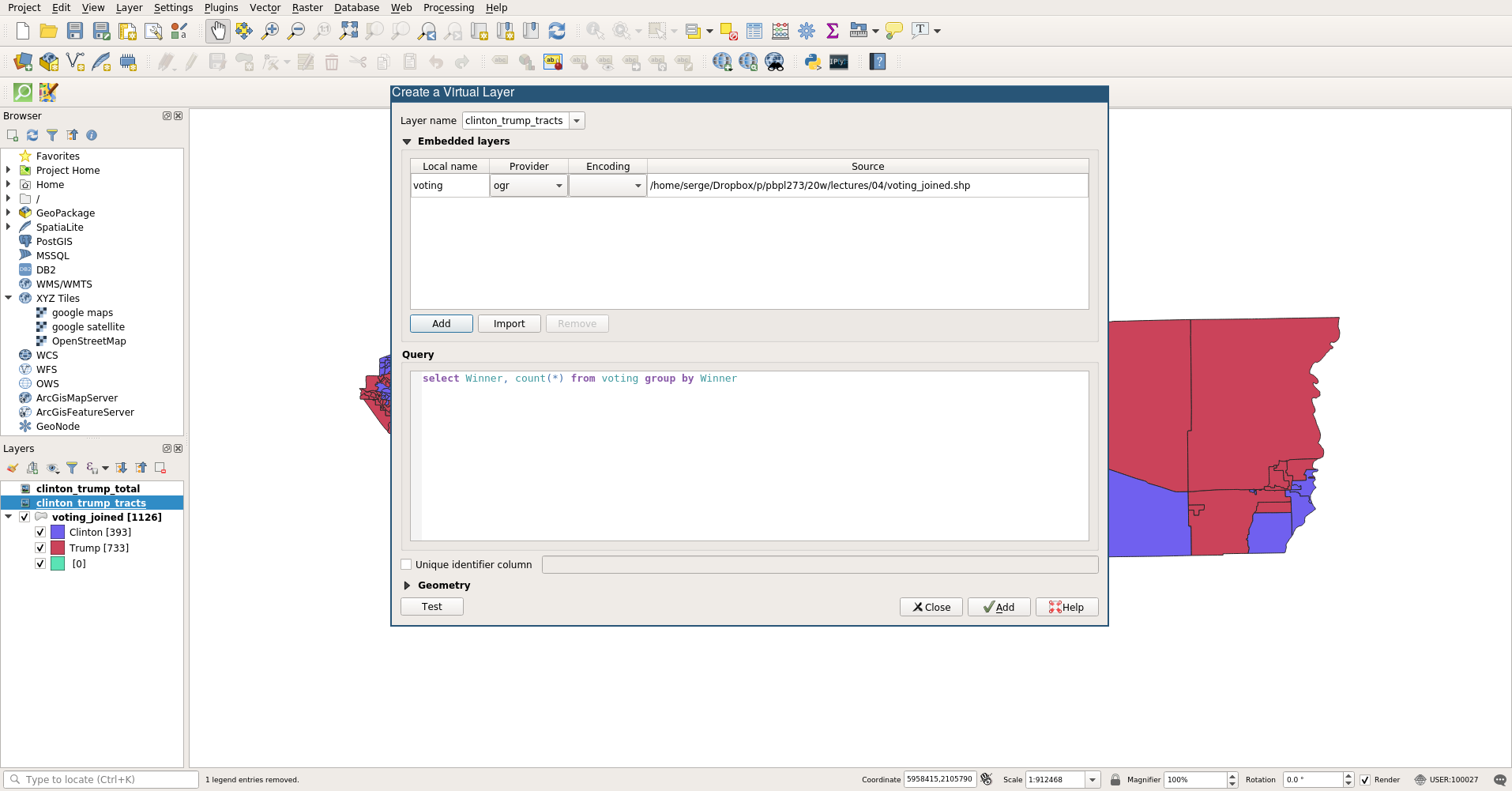
Edit New Virtual Layer
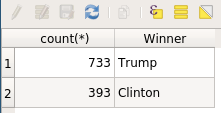
Query for Tracts Won by Candidate
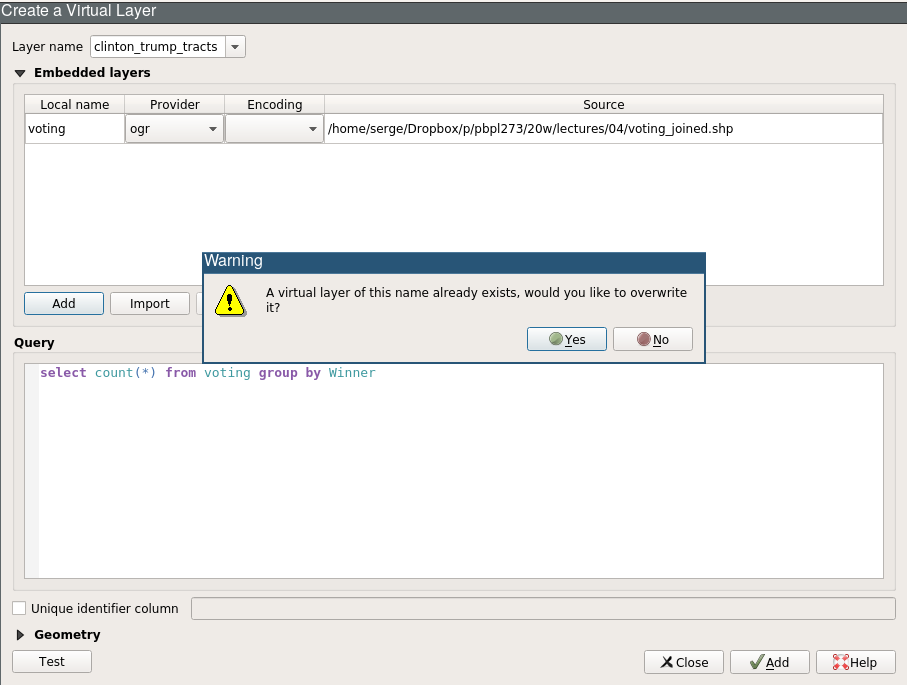
Warning
Result: Tracts Won by Candidate
Next Up
- Raster Data

GIS for Public Policy’20 by Sergio Rey is licensed under a Creative Commons Attribution-ShareAlike 4.0 International License.